Understanding OpenClaw
OpenClaw is a locally-focused AI execution engine that enhances interaction with local systems, distinguishing itself from traditional AI models that primarily generate text.
Basic Understanding of OpenClaw
-
Essential Attributes and Positioning
OpenClaw is designed as a local-first AI agent execution engine, focusing on LLM execution and peripheral interaction without large model training or inference capabilities. Developed in TypeScript, it is adaptable across multiple systems and serves as a critical link between AI and local operations. -
Differences from Traditional AI
Unlike traditional conversational AIs that primarily engage in text-based interactions, OpenClaw can interpret natural language commands and directly execute local operations, minimizing the need for human intervention. -
Value and Applicable Scenarios
OpenClaw emphasizes private deployment and autonomous execution, ensuring data remains on local devices and is not uploaded to the cloud. This is suitable for privacy compliance, offline intranet scenarios, and fulfilling the needs of personal daily operations, developer maintenance, and enterprise process automation. -
Naming and Community Recognition
In the developer community, OpenClaw is affectionately referred to as “Lobster,” a name that reflects its broad cross-platform adaptability, flexible operation modes, and deep integration capabilities, aligning well with the symbolism of “Claw” as a lobster claw, enhancing communication and recognition.
Significance of Local Deployment
- Data Privacy: Operations are conducted on local devices or private servers, reducing the risk of sensitive information being uploaded to the cloud.
- Response Speed: Minimizing reliance on network requests for data transmission allows for faster responses, meeting the demands of real-time tasks.
- Customization Level: Users can flexibly adjust models, plugins, and permission settings according to their specific needs, accommodating various application scenarios.
- Cost Considerations: Compared to frequent calls to cloud APIs, local deployment can help reduce long-term costs associated with usage.
Detailed Local Deployment Solutions
(1) Claw Local Deployment Master
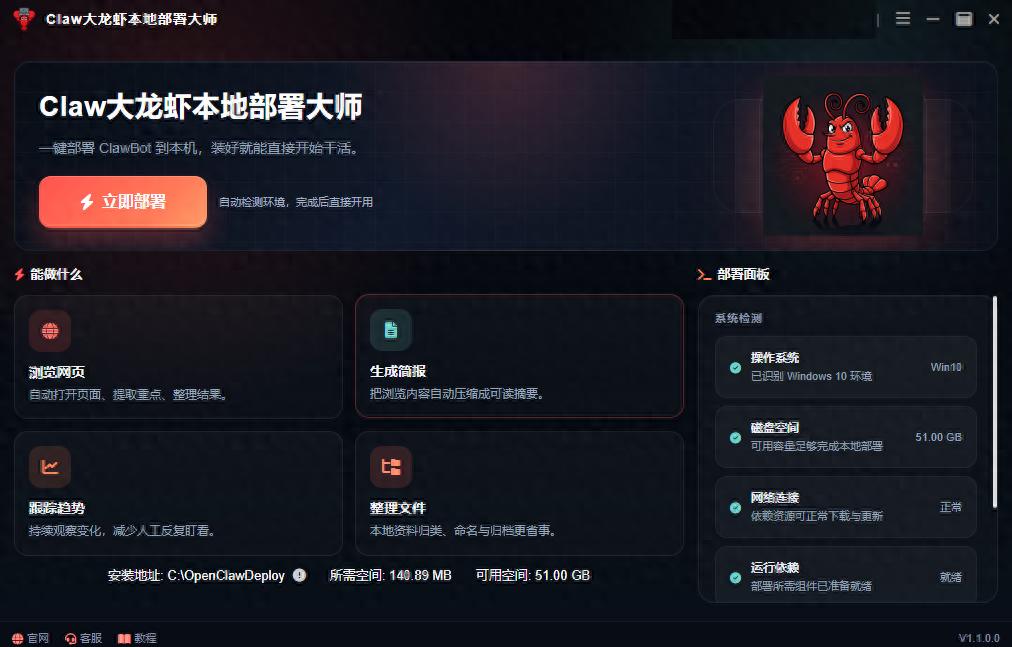
This tool is specifically designed for OpenClaw, featuring a simple and intuitive interface that automatically completes environment checks, dependency installations, and model loading, enabling even beginners to have a local AI assistant capable of executing complex tasks.
-
Software Acquisition:
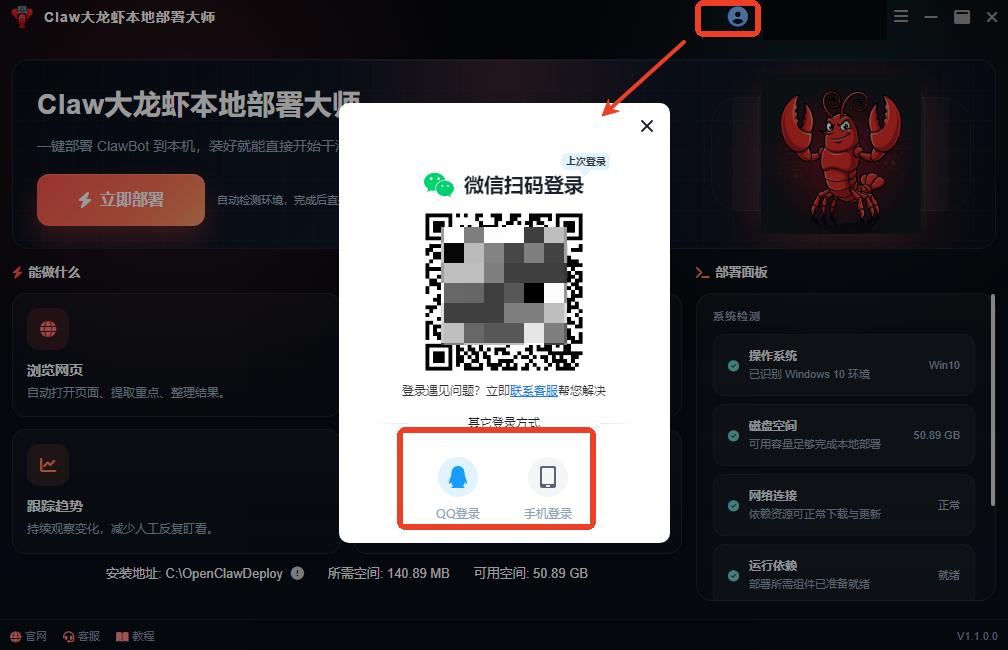
Search for the software name in a common browser, visit the official website to download it, and follow the installation guide to complete the setup.The software supports login via QQ, WeChat, and phone number. To access all features, a membership must be activated, which is a one-time purchase for long-term use.
-
Software Deployment: Process and Configuration
(1) Environment Check: Automatically completed
Click “Deploy Now” on the homepage to automatically initiate an environment check. If deployment conditions are met, you can start using it without complex manual settings.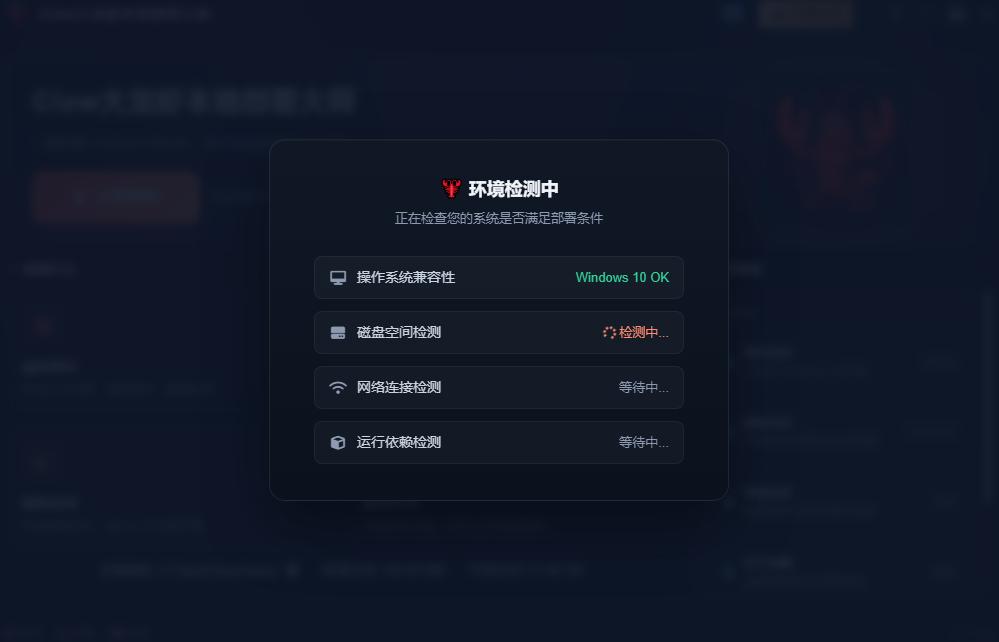
(2) Working Directory: Reasonable Planning
The system will automatically redirect you to create a dedicated folder for storing the AI workspace and log information.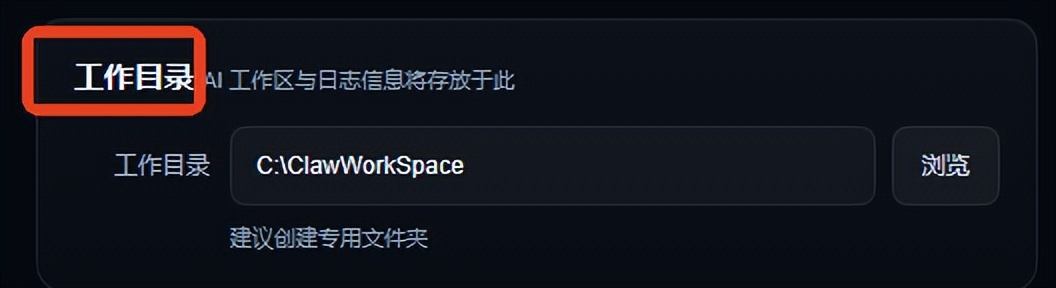
(3) AI Models: Select as Needed
Four major models can be selected based on actual needs and usage scenarios. If you choose Tongyi Qianwen or Doubao, relevant permissions must be activated.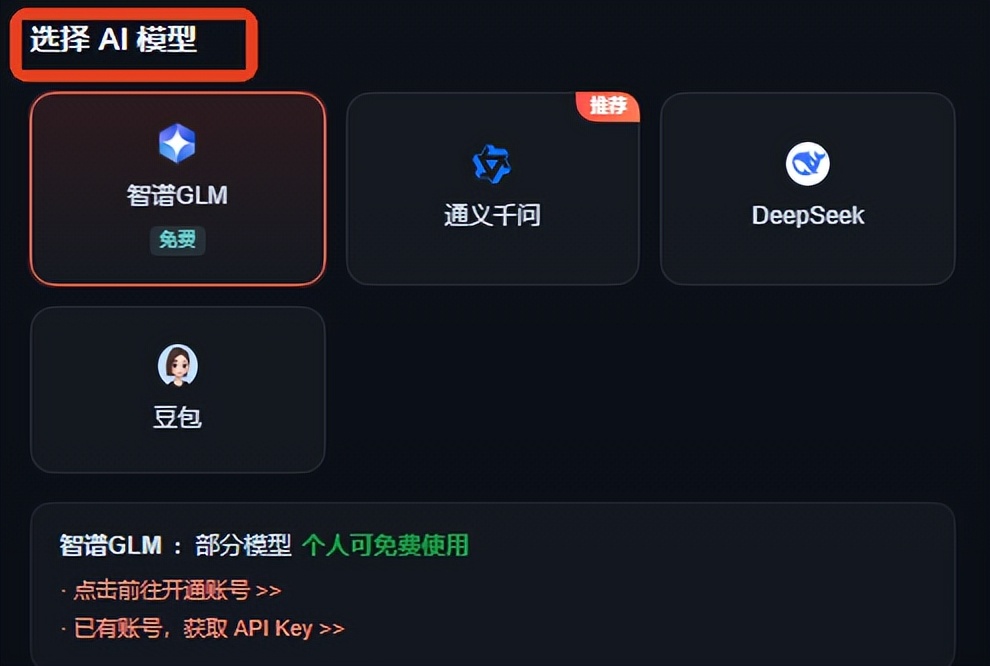
(4) API Key: Enter Accurately
After selecting a model, input the corresponding model name and the obtained API Key in the designated area, then click “Verify API”. Once successful, press “Start Using”.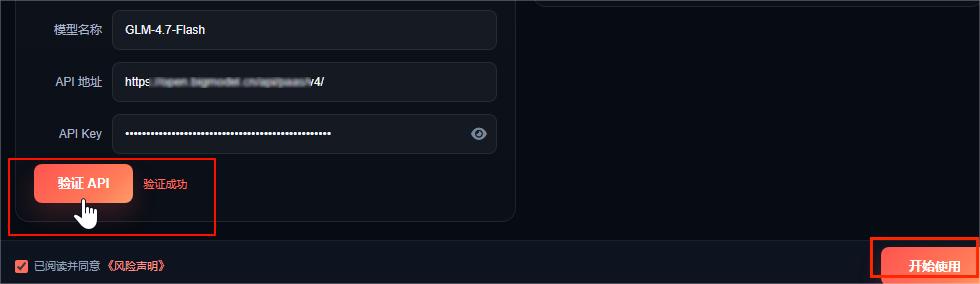
-
Chat Session: Communication and Support
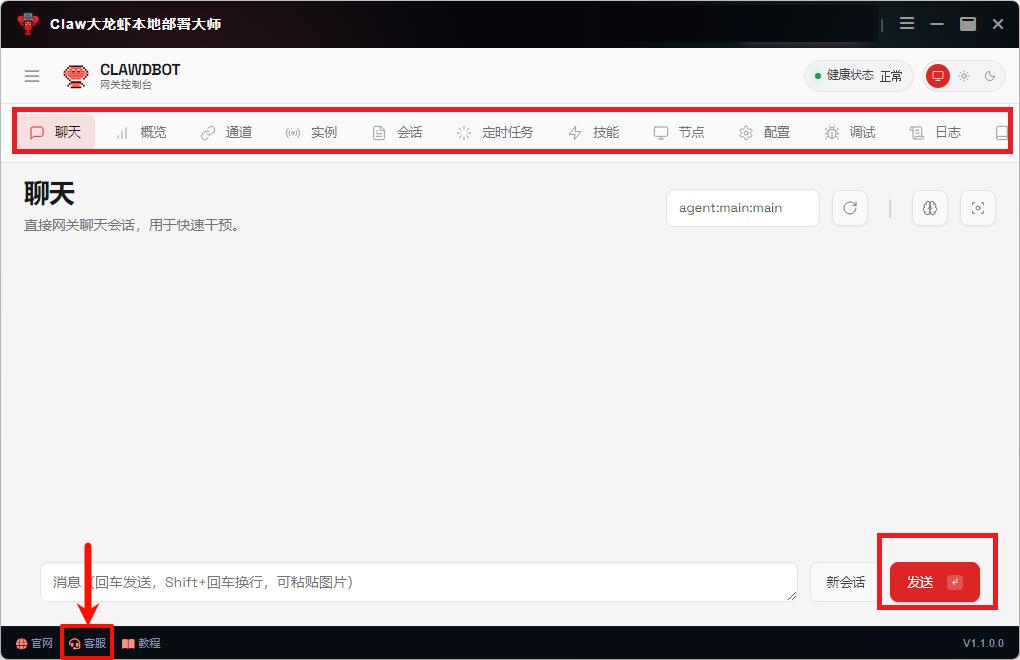
- Diverse Interaction: Flexible Communication
The interface features tabs for chat, settings, and more, allowing for easy switching. Besides direct text input, image pasting is also supported for clearer communication. - Customer Support: Thoughtful Service
If you encounter operational questions, click the “Customer Service” button at the bottom left of the interface for prompt responses from professionals.
- Diverse Interaction: Flexible Communication
(2) Docker
Utilize the official Docker image to build a container, setting ports and data mappings through configuration files. The container comes with running dependencies that do not interfere with the local system and supports cross-platform operation, allowing for quick deployment with basic command knowledge.
(3) Python
Create an independent virtual environment using venv or conda to effectively isolate project dependencies and avoid conflicts. Install the specified libraries to run the program, which has low resource usage and is particularly suitable for parallel multi-project operations, though some dependencies need to be installed manually.
That concludes this sharing session. I hope it helps you! If you liked it, remember to give a thumbs up!
Comments
Discussion is powered by Giscus (GitHub Discussions). Add
repo,repoID,category, andcategoryIDunder[params.comments.giscus]inhugo.tomlusing the values from the Giscus setup tool.